Dashboard
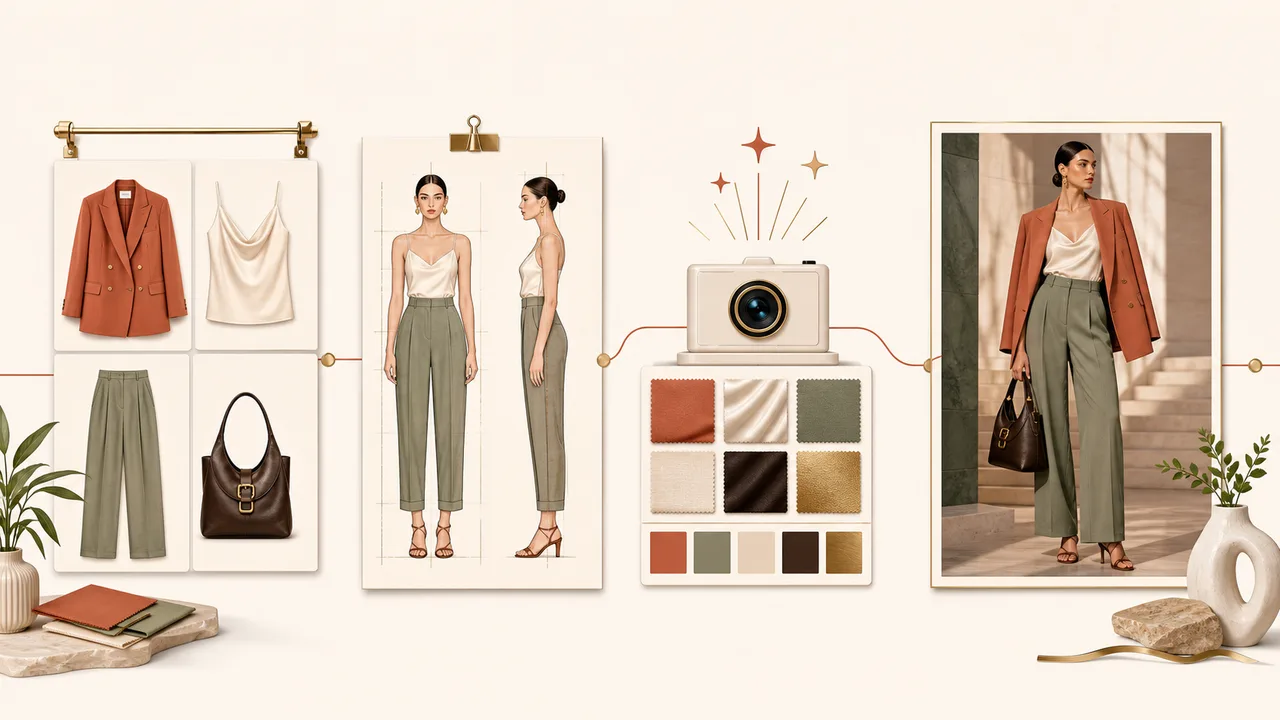
An AI fashion studio for creating models and polished product editorials with diverse poses, backgrounds, and photo-style recipes.Details
Recent Jobs
0 jobsManage character sheets and lookbook bases for virtual try-on. 0
Create Virtual Try-On Jobs
Job History
Queued Generation Jobs
Select Result Images
0Content Collections
Video Source
You can keep workingGenerated Videos
Template Source
previewProduct Description Preview
My Poses & Available Poses
Create Pose Guide
3 AUUsage Policy
line drawing v1Shared Asset Library
Browse character sheets, lookbook bases, and pose guides curated by supaMov. Shared assets can be used in supported studio workflows and are not available for resale.
Gallery
AU Packs
Checking payment setupAU that has already been used cannot be refunded. See the Terms of Service for details.
Transaction History
Quick Start
Create consistent product lookbooks with one model
Define the model with a character sheet, design the scene with a lookbook base, then apply different products through virtual try-on. Save repeated combinations in the Work Cart and run them together.
- Character Sheet
- 10 AU
- Pose Guide
- 3 AU
- Lookbook Base
- 15 AU
- Virtual Try-On
- 20 / 30 AU
- 1Character SheetDefine model identity
- 2Lookbook BaseDesign the scene
- 3Add ProductsPrepare front and back
- 4Run or SaveGenerate now or in bulk
- 5Use ResultsBuild lookbooks and video
Define model identity with a character sheet
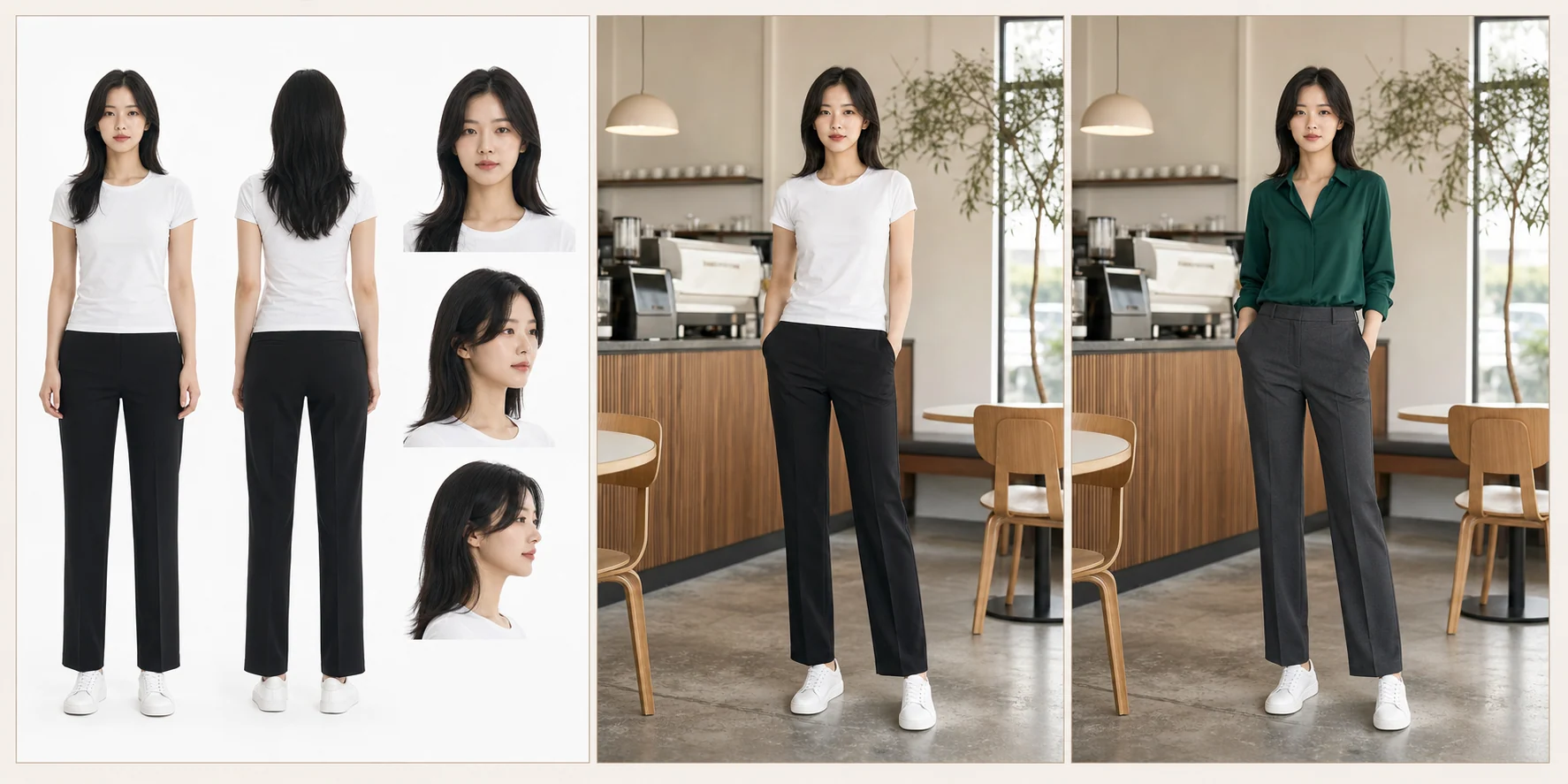
A character sheet combines consistent front and back full-body views with multiple facial views. It becomes the identity reference for future lookbook bases.
- Open Models & Lookbooks and select Create Character Sheet.
- Choose ethnicity, age range, height, body type, hair, complexion, and expression. A blank name is generated automatically.
- Confirm the AU amount and submit. Generation continues if you leave the page.
- Open the completed sheet and confirm that every panel represents the same person.
Turn an authorized photo into a reusable pose guide
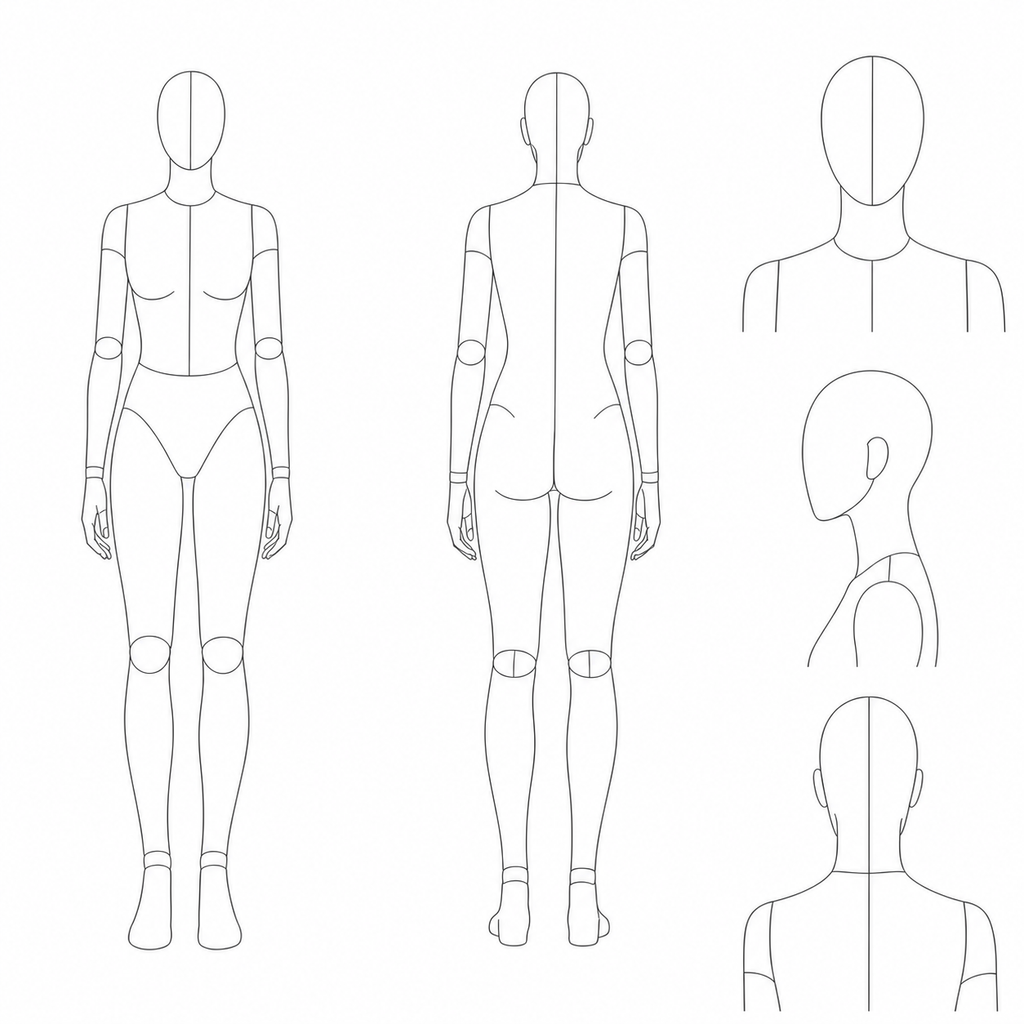
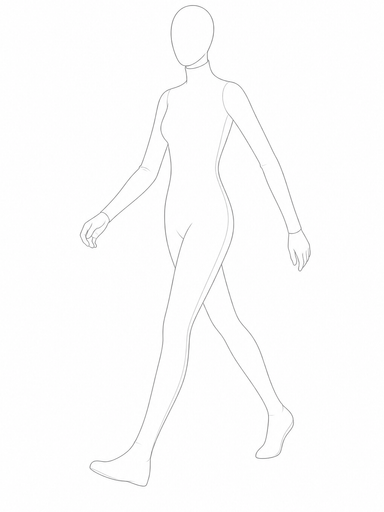
The Pose Gallery removes identity, clothing, and background from a source photo and keeps body direction, limb placement, contact points, and perspective as a line drawing. The source photo is deleted from supaMov storage after processing.
- Upload a clear photo containing one person.
- Review the generated guide and approve it for private use.
- Your pose guide remains private to your store.
- Use built-in and supaMov-curated guides from the Shared Asset Library when you need another pose.
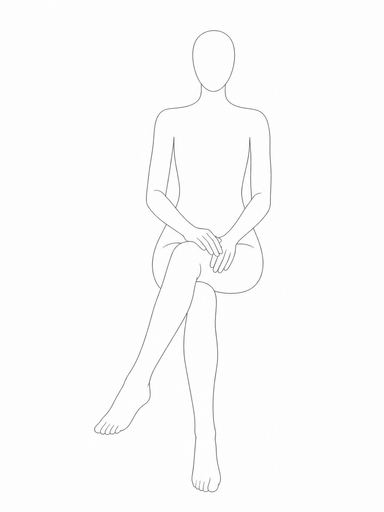
Use assets curated by supaMov
The Shared Asset Library contains character sheets, lookbook bases, and pose guides provided or curated by supaMov for supported studio workflows.
- Filter shared assets by type and relevant model attributes.
- Open a shared model to review its character sheet and available lookbook bases.
- Use built-in or shared pose guides in AI Fashion Studio.
- Shared assets remain managed by supaMov and cannot be sold, transferred, downloaded as source assets, or offered to another merchant.
- Shopify merchants cannot submit or sell assets, and creator rewards or marketplace earnings are not available.
- Assets created by your store remain private.
Design the scene with a lookbook base
A lookbook base is the pre-fitting image. Reuse the same base across products to maintain a consistent model, pose, background, composition, and photo style.
- Open a model and select Create Lookbook Base.
- Choose aspect ratio, photo style, background, framing, pose, expression, and gaze.
- In Basic mode, simply choose Editorial, Luxury, Lifestyle, Lookbook, or Catalog. Select an information icon for a plain-language preview of the expected result.
- Open Advanced settings only when you want to adjust background blur, lighting, 35mm/50mm/85mm/105mm lens feel, color tone, or camera height. 105mm adds stronger background compression for a refined luxury look. These settings prioritize clear model, garment, and fabric details.
- Select at least one pose. Choose a fixed expression or Random, and use Auto Recommend or a specific gaze direction.
- The first usable image becomes primary. You can assign another candidate as primary or secondary later.
- Bases created by your store remain private. Bases curated by supaMov are read-only shared assets.

Import and review accurate product images
Select Refresh Products to import the title, featured and additional images, price, inventory, vendor, product type, tags, options, and status. Refresh the list again after making changes in Shopify Admin.
- Use a standalone garment image with the full item visible.
- Keep a clear boundary between garment and background.
- Review the top, bottom, or one-piece category in supaMov.
- Add or verify a back image for rear logos, pockets, seams, or panels.
- Review fit, material, and sheerness before generation.
Build combinations in five guided steps
- On the start screen, review recent work and select Start New Job.
- 1. Model: select exactly one model.
- 2. Lookbook Base: select one existing base, or create one new base when no existing base is selected.
- 3. Photo Style: configure the new base only.
- 4. Outfit Combinations: create every selected top-by-bottom combination, or choose one-pieces as standalone outfits. One-pieces cannot be mixed with tops or bottoms.
- 5. Review: confirm output count and AU, then run now or add to the Work Cart.
- Cancel Job returns to the start screen. A successful cart addition also completes and resets the current draft.
- An existing base is never regenerated. The selected base is reused for every outfit combination, and each combination creates one result. A top and bottom are sent together in one virtual try-on request. Add separate model jobs to the Work Cart when you want to run several models together. Standard output uses 20 AU and high-resolution output uses 30 AU per image.
Prepare repeated jobs in the Work Cart
Prepare character sheets, lookbook bases, and fitting combinations first, then start only the jobs you want to run.
- In Models & Lookbooks, configure a character sheet or lookbook base and select Add to Work Cart, or add fitting combinations from AI Fashion Studio.
- Continue adding assets and combinations for other models or products.
- Review expected outputs and AU cost in the Work Cart.
- Select jobs and choose Run Selected Jobs.
- Lookbook bases for the same model run in order. Waiting jobs start automatically.
- Running jobs show a progress indicator and status. Completed jobs move to the Completed tab.
- Jobs run independently, so successful results remain available even if another job fails.
- In Completed, download one fitting result directly or multiple results as a ZIP, and open Models & Lookbooks to review generated assets.
Organize results and create video
Filter results by virtual try-on image, video, model, lookbook base, or other content. Organize several images into a product collection or turn an eligible still image into a short video.
- Organize multiple results into a product lookbook collection.
- Create a 6-second video for 60 AU or a 10-second video for 90 AU.
- Continue using other screens while generation runs in the background.
- Include the job number and time when contacting support.
Browse the FAQ for feature and troubleshooting answers.
How can we help?
Search for a feature, symptom, or topic.
Getting StartedWhere should I start?
Create a character sheet, create or select a lookbook base, and add your garments under Products. Then use AI Fashion Studio to generate immediately or add combinations to the Work Cart.
Character SheetsWhat is a character sheet?
A character sheet is the identity reference for one model. It combines consistent front and back full-body views with front, side, and back facial views. The selected height and body type are also used when creating lookbook bases.
Character SheetsWhy does every character sheet use a basic outfit?
The white T-shirt, black pants, and simple shoes provide a stable neutral reference. Your actual merchandise is applied later during virtual try-on.
Character SheetsCan I leave the model name blank?
Yes. supaMov creates a unique name automatically. You can rename the model later, but duplicate names are not allowed within the same store.
Character SheetsWhat is the difference between my model and a shared model?
Your models belong only to your store. Shared models are provided for all eligible stores. Any private lookbook bases or results you create from a shared model still belong only to your store.
Pose Gallery & Shared AssetsCan I turn a reference photo into a reusable pose?
Yes. Upload a photo you are authorized to process. supaMov creates a line-drawing guide that removes identity, clothing, and background. The source photo is used only for processing and review, then deleted from supaMov storage.
Pose Gallery & Shared AssetsHow do shared pose guides work?
Built-in and supaMov-curated pose guides appear in the Shared Asset Library and can be used in supported studio workflows. Pose guides created by your store remain private and are not offered to other merchants.
Pose Gallery & Shared AssetsWhat is available in the Shared Asset Library?
The library contains character sheets, lookbook bases, and pose guides provided or curated by supaMov. Shared assets can be used in supported workflows, but they cannot be sold, transferred, or offered to another merchant.
Pose Gallery & Shared AssetsWhat happens if a rights issue is reported for a shared asset I use?
New generation, original downloads, and commerce-platform applications may be paused while the report is reviewed, and an in-app notice identifies affected results. Pause publishing, advertising, and distribution until the review is complete. If the issue is confirmed, access is revoked and you must remove copies already downloaded or published outside supaMov. If the report is dismissed, the restriction is cleared.
AU PacksHow do AU packs work?
Each store receives a one-time welcome balance of 200 AU on its first install. The welcome AU currently has no scheduled expiration and is given only once per store. Basic (800 AU, $29.99), Standard (1,600 AU, $49.99), and Pro (4,000 AU, $99.99) are one-time purchases billed through Shopify. There is no subscription and nothing renews automatically. Pack AU is valid for 1 year from purchase, and buying another pack extends the expiry of the pack AU you still have. AU expiring sooner is used first.
Pose Gallery & Shared AssetsCan I submit or sell my assets through Shopify?
No. The Shopify app provides a curated Shared Asset Library only. Assets created by your store remain private, and marketplace submissions, creator rewards, and marketplace earnings are not available.
Lookbook BasesWhat is a lookbook base?
A lookbook base is a pre-fitting image of your selected model in a specific pose, background, framing, expression, and aspect ratio. Reuse it across products to keep a consistent campaign look.
Lookbook BasesWhat are primary and secondary bases?
The primary image is the default for a base family. Other candidates may be saved as secondary images. You can change the primary image or delete an unused candidate later.
Lookbook BasesWhich aspect ratio should I choose?
Use 3:4 for product pages, 4:3 for horizontal editorials, 16:9 for banners and video sources, 9:16 for vertical social content, and 1:1 for square social posts.
Lookbook BasesHow do photo style, expression, gaze, and pose work?
Choose Catalog, Lookbook, Lifestyle, Luxury, or Editorial in Basic mode. Advanced settings control lens feel, background blur, lighting, color tone, and camera height. Choose an expression or Random for a safe variation per pose. Gaze can follow Auto Recommend or a specific direction. A new lookbook base has no default pose, so select at least one pose explicitly.
Lookbook BasesDo I get a refund if I dislike a generated base?
A successfully generated and viewable image is billable even if you decide not to use it. Automatic refunds apply only when generation or saving fails and no usable image is available.
ProductsWhat product images work best?
Use an uncropped, front-facing standalone garment image with a clean boundary from the background. Add a back image whenever rear design details matter.
ProductsWhy should I upload a back image?
Rear poses prioritize the back product image. Side and turned poses can reference both front and back images, improving logos, pockets, seams, and other rear details.
ProductsCan I apply a top and bottom together?
Yes. The app creates every selected top-by-bottom combination. Each outfit is prepared as one combined reference and sent to FASHN Max once to create one result. A one-piece is a standalone outfit and cannot be selected with tops or bottoms.
ProductsWhat product information does supaMov import from Shopify?
Refresh Products imports the title, featured and additional images, price, inventory, vendor, product type, tags, options, and product status. After editing a product in Shopify Admin, refresh the product list again. Before generation, review or adjust the garment category, fit, material, and sheerness in supaMov.
Virtual Try-OnHow many images does one run create?
Each job uses exactly one model and one Lookbook Base. The result count equals the number of outfit combinations. For example, three outfits create three results. A new base is generated only once, then reused across every outfit in that job.
Virtual Try-OnCan I use a shared lookbook base?
You can use bases shared or curated by supaMov. Private bases created by another store are never visible to you.
Virtual Try-OnWhat are the five steps in AI Fashion Studio?
Select Start New Job, then complete 1) Model, 2) Lookbook Base, 3) Photo Style, 4) Outfit Combinations, and 5) Review. You can build multiple valid outfit combinations. Run them immediately or add them to the Work Cart. Adding them to the cart clears the current draft and returns you to the start screen.
Work CartWhen should I use the Work Cart?
Use it to prepare character sheets, lookbook bases, or fitting jobs for different models and garment combinations before submitting selected jobs together. Add asset jobs from Models & Lookbooks and fitting jobs from AI Fashion Studio.
Work CartCan I run several lookbook bases for one model?
Yes. Select multiple lookbook base jobs in the Work Cart. Bases for the same model start one at a time to avoid overlapping identity generation. A job marked Waiting for Previous Job starts automatically when the previous base finishes.
Work CartIs AU deducted when I add a job to the cart?
No. Adding or deleting a saved job is free. The estimated output count and AU cost are shown in advance; AU is deducted only when you start the selected jobs.
Work CartWhat happens if only some jobs fail?
Each cart item runs independently. Successful results are preserved, and only jobs that reach a final failed state are refunded automatically.
Results & VideoWhere can I find completed assets?
Use Results Gallery to filter virtual try-on images, videos, models, lookbook bases, and other content. Select an image thumbnail to open a larger preview with the model name and generation settings. Download the original from either the card or the preview.
Work CartCan I download completed Work Cart results together?
Yes. Open the Completed tab and select Download Result. A single result downloads as its original file; two or more results download as a ZIP. A partially failed group includes only the completed outputs.
Results & VideoCan I create video from a still image?
Yes. Generate a 6-second video for 60 AU or a 10-second video for 90 AU from an eligible virtual try-on image or lookbook base.
AU PacksHow many AU do core features use?
A character sheet uses 10 AU, a pose guide uses 3 AU, and a lookbook base uses 15 AU. Standard virtual try-on uses 20 AU per output, and high-resolution virtual try-on uses 30 AU per output.
TroubleshootingWill generation continue if I leave the page?
Yes. Once started, generation continues in the background. You may switch pages or close the browser and return later to review status and results.
TroubleshootingWhat should I do if an image disappears temporarily?
The secure image link may be refreshing. Reopen or refresh the page first. If the problem continues, contact support with the job number, asset name, and approximate time.
TroubleshootingWhy did the face, pose, or garment change?
Confirm that you selected the intended model, lookbook base, and product images. For garment issues, verify category, front and back images, fit, material, and sheerness settings. Complex transparent layers and asymmetric details may require another source image or generation.
TroubleshootingWho is responsible for usage rights?
You must have the necessary rights to uploaded people, garments, logos, and reference images, and you are responsible for confirming that generated results are suitable for commercial use.